Tab Tracker
A downloadable tool for Windows
Getting Started
Super simple to get started. Download and extract the .zip file to somewhere you will remember. Run the .exe file to launch the app. Once it's running you can press the escape key (Esc) to show the settings window.
Settings
Live Info
This shows some basic information for the application.
Delta Time - How many seconds it takes to update the mouse position.
FPS - How fast the hand is being drawn to the screen.
Mouse Global Position - This is the global position of your mouse across your screen(s) according to Windows coordinates.
Mouse Application Position - This is the tracking position of the cursor inside the output window.
Current Hand/Arm Angle - These tell you what the current angle of the hand and arm are. Useful for adjusting the rig
Display Settings
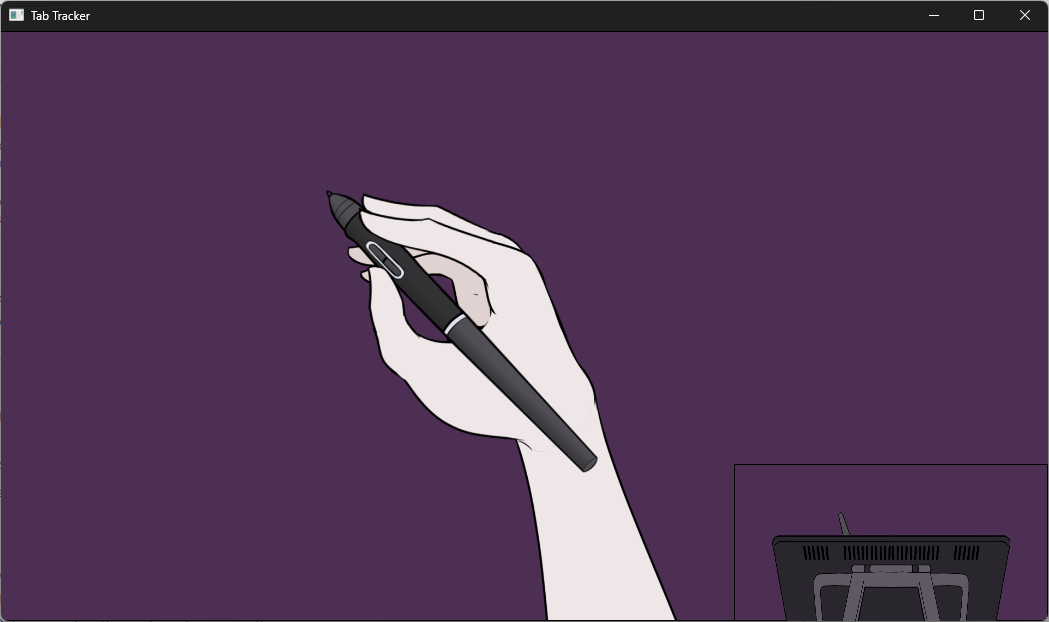
- Dual Window Mode - Toggles dual window or picture-in-picture mode for the application.
- Headless - Prevents drawing to the screen. This is great to use with Spout output to decrease GPU usage.
- Use Spout - The program can use the Spout2 protocol for sharing the output. This can then be used with OBS/Meld/etc. to capture the direct output.
- Spout Transparent Background - Spout2 output channels will transmit with the background completely transparent, removing the need to use things such as chroma key filters.
- Background Color - The background color of the output. If Spout Transparent Background is enabled, this setting will only affect the tool window, not the Spout output.
Tracking Settings
Tracking Style
Bounds
Bounds tracking allows you to define a specific area of the screen to track. The application will only track the cursor inside of the set bounds. The origin is the top left corner of the bounds, the size is width and height of the area you want to track. You can use the Live Info tab to check Global Mouse Position to easily find the coordinates of your desired bounds. Will track and output to Spout while the tool is minimized
Window
Window tracking will track the cursor across the window's display area (titlebar not included). Note that this tracks the display area, not the colored background area. This is best used if you want to fullscreen the application behind your drawing app (you can enter/exit fullscreen with F11) Will NOT track and output to Spout while the tool is minimized
Screen
Screen tracking allows you to pick a specific screen to track. Simply select the monitor # that correlates to your drawing area and it will track on that screen. Will track and output to Spout while the tool is minimized
Remote
Remote tracking is designed for multi-pc streaming. You can track the cursor on PC-A and render to Spout on PC-B. See the Dual-PC section for details. Will track and output to Spout while the tool is minimized
Rig Settings
This is where you adjust the rig behavior. Things like scale and offsets.
Arm Scale
Changes the size of the entire rig on the screen.
Cursor Offsets
Adjust this to alter the alignment of the pen tip to the cursor if you find the pen position is wrong.
Starting Angles
These are the default angles of the hand and wrist when at the origin point (0,0) of your tracking./p>
Swing Limits
These define how far the rig swings based on x,y position. The higher the Swing X value, the more the point swings as you move horizontally on the screen. The higher the Swing Y value, the more the point swings as you move vertically on the screen.
Wrist Position
This is the pixel location in the artwork where the center "pin" of the wrist goes. The arm will pivot from this point.
Network Settings
These settings are for Dual-PC tracking. If you need more information on them, refer to the Dual-PC Tracking section below
Dual-PC Tracking
If you Dual-PC stream, then you know the frustration of trying to find applications that function normally in that setup. Tab Tracker is built with Dual-PC streaming in mind as I'm a Dual-PC streamer myself.
Primary PC Setup
For your primary PC, go into the Network Settings section and enable "Broadcast Tracking Data". If you want to set a password, be sure to do that before enabling broadcasting.
I highly recommend setting up the tracking how you like on your primary PC then enabling headless mode and disabling spout output. This will lighten the resource load of the application on your primary PC.
Streaming PC Setup
For your streaming PC, go into Tracking Settings and set the Tracking Style to Remote.
To setup the remote connection, enter in the Remote Host IP address (the LAN IP of your primary PC). If you changed the port or set a password on your primary PC, make sure they match here.
Press Connect and it should connect to the primary pc. The red Disconnected pin should change to a green Connected one.
Creator's Note
This is a passion project. Any support is super appreciated but so is feedback! I'd love to hear what you guys think about it and how you'd like to see the tool improved.
Download
Click download now to get access to the following files:
Leave a comment
Log in with itch.io to leave a comment.